Broken Screen Locker Instructions
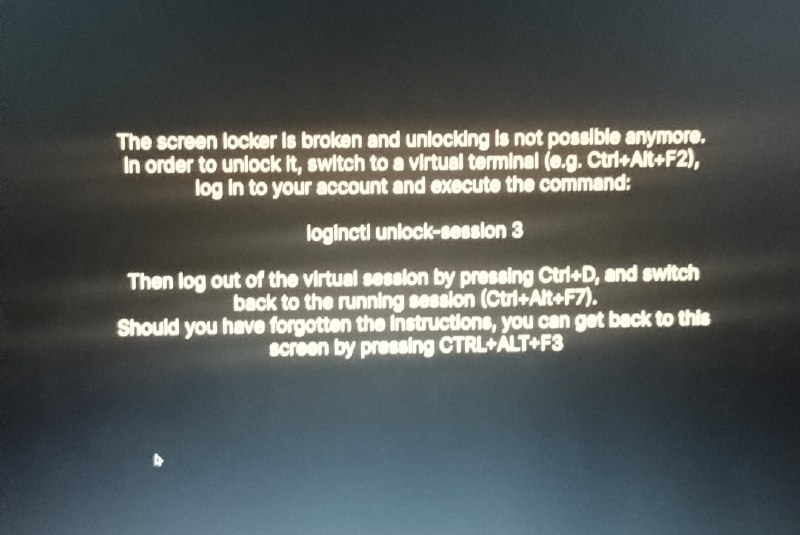
The screen locker is broken and unlocking is not possible anymore. In order to unlock it, switch to a virtual terminal (e.g. Ctrl+Alt+F2), log in to your account and execute the command: loginctl unlock-session 3 Then log out of the virtual session by pressing Ctrl+D, and switch back to the running session (Ctrl+Alt+F7). Should you have forgotten the instructions, you can get back to this screen by pressing CTRL+ALT+F3
A blurry photograph of a Linux text console displays instructions for unlocking a broken screen locker by switching to a virtual terminal and running a loginctl command. The joke is the absurdly complicated recovery instructions, which themselves require remembering another keyboard shortcut to return to the screen; it works as a reaction to confusing technical troubleshooting or Linux user experience. EN: A blurry photograph of a Linux text console displays instructions for unlocking a broken screen locker by switching to a virtual terminal and running a loginctl command. The joke is the absurdly complicated recovery instructions, which themselves require remembering another keyboard shortcut to return to the screen; it works as a reaction to confusing technical troubleshooting or Linux user experience.
- @gentoomemes / 17593 2025-06-08
- Type
- image
- Size
- 800×535 · 63.6 KiB
- Mood
- absurd, technical
- Language
- en
- Added