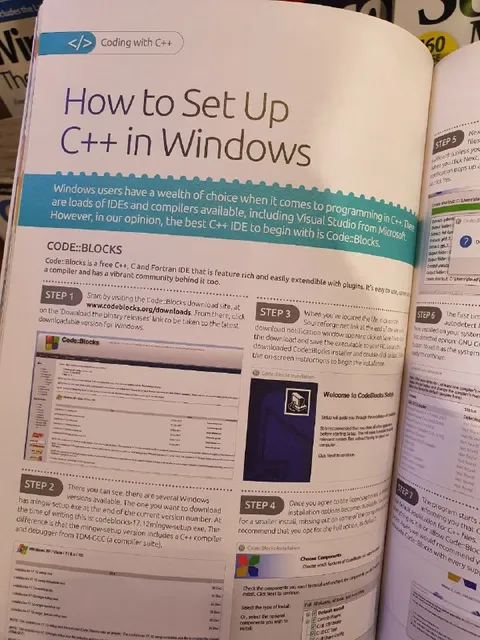
How to Set Up C++ in Windows
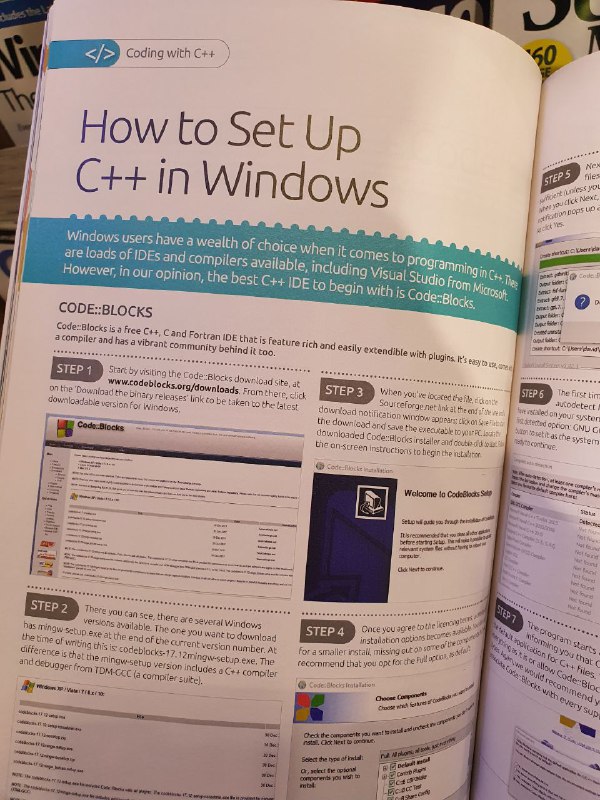
Coding with C++ How to Set Up C++ in Windows Windows users have a wealth of choice when it comes to programming in C++. There are loads of IDEs and compilers available, including Visual Studio from Microsoft. However, in our opinion, the best C++ IDE to begin with is Code::Blocks. CODE::BLOCKS Code::Blocks is a free C++ and Fortran IDE that is feature rich and easily extendible with plugins. It's easy to use, and a compiler and has a vibrant community behind it too. STEP 1 STEP 2 STEP 3 STEP 4 STEP 5 STEP 6 STEP 7 Welcome to Code::Blocks Setup Choose Components
На фотографии раскрытая страница учебника с инструкцией «How to Set Up C++ in Windows»: показана установка среды разработки Code::Blocks по шагам. Юмор основан на том, что обычная страница из старого учебника выглядит как обещанный эксклюзивный гайд, который предлагают полностью опубликовать за донаты. EN: The photo shows an open textbook page titled “How to Set Up C++ in Windows,” with step-by-step instructions for installing the Code::Blocks development environment. The joke is that an ordinary page from an old textbook is presented like an exclusive guide that will supposedly be published in full in exchange for donations.
open programming textbook / раскрытый учебник по программированиюbook page / страница книгиC++ logo / логотип C++Windows logo / логотип WindowsCode::Blocks logo / логотип Code::Blockscomputer software screenshot / скриншот компьютерной программыinstallation wizard / мастер установкиpurple software installer panel / фиолетовая панель установщикаstep-by-step instructions / пошаговые инструкцииteal banner / бирюзовый баннерprinted text / напечатанный текст
- @ithueti / 2052 2020-02-27
- Type
- image
- Size
- 600×800 · 126.1 KiB
- Mood
- ироничный
- Language
- en
- Added